AI made for picture books

Turn one small idea into a picture book you can truly make your own

Lumi keeps your story, visual references, storyboards, image candidates, and exports inside one local project. AI helps you move forward; you still decide how the story is told and which version stays.

Available for Apple Silicon Macs and Windows x64 · AI features require a model provider

Your story, your call Characters stay consistent Every step stays editable Your work stays local
Lumi project overview for the Moonlight Mail picture book

From spark to storybook

Make the whole picture book without carrying context between tools

Work manually at every step or ask AI for a first pass. Generated content never becomes the final choice for you.

  1. 01

    Share the story spark

    Begin with one sentence, then define the hero, wish, obstacle, and change.

  2. 02

    Shape the story and chapters

    Write, import, or generate chapters while keeping earlier versions available.

  3. 03

    Build visual references

    Organize characters, places, props, and the overall art direction for reuse.

  4. 04

    Break it into storyboards

    Turn prose into editable visual beats and tune framing, action, and rhythm.

  5. 05

    Generate and choose images

    Bring premise references into generation and choose from saved candidates.

  6. 06

    Preview and export

    Read the chapter as a sequence, then export one chapter or the whole project as an original-image ZIP or A4 PDF.

Five picture-book formats

One story can take five different forms

Choose the narrative form that fits your project. Lumi then applies the matching page structure, canvas rules, and generation prompts.

One connected workspace

Keep the process moving—and keep a way back

One story, not scattered context

Keep the story profile and every chapter in the same place

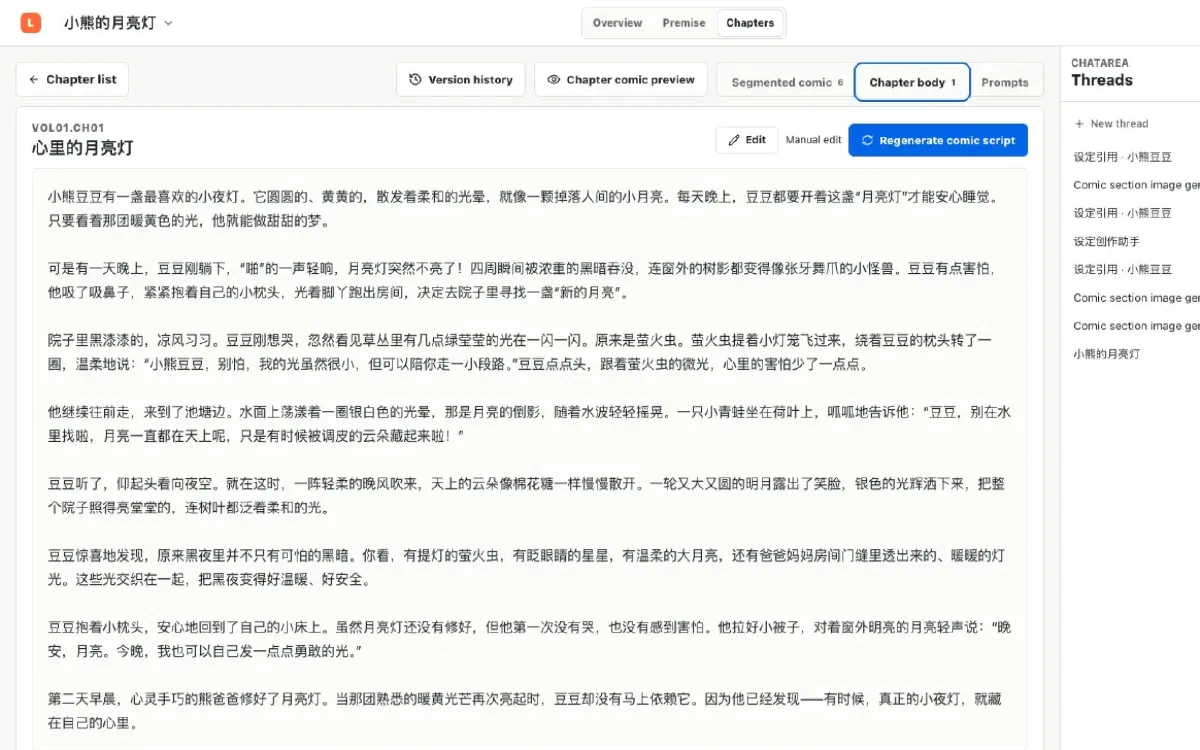
Write by hand, import an existing draft, continue with AI, or plan several chapters without repeatedly moving context between chat and documents.

  • Maintain the story profile and chapter prose separately
  • Import TXT and Markdown drafts
  • Compare and restore prose versions
Lumi story and chapter editing interface

A consistent visual world

Turn characters, places, and props into shared references

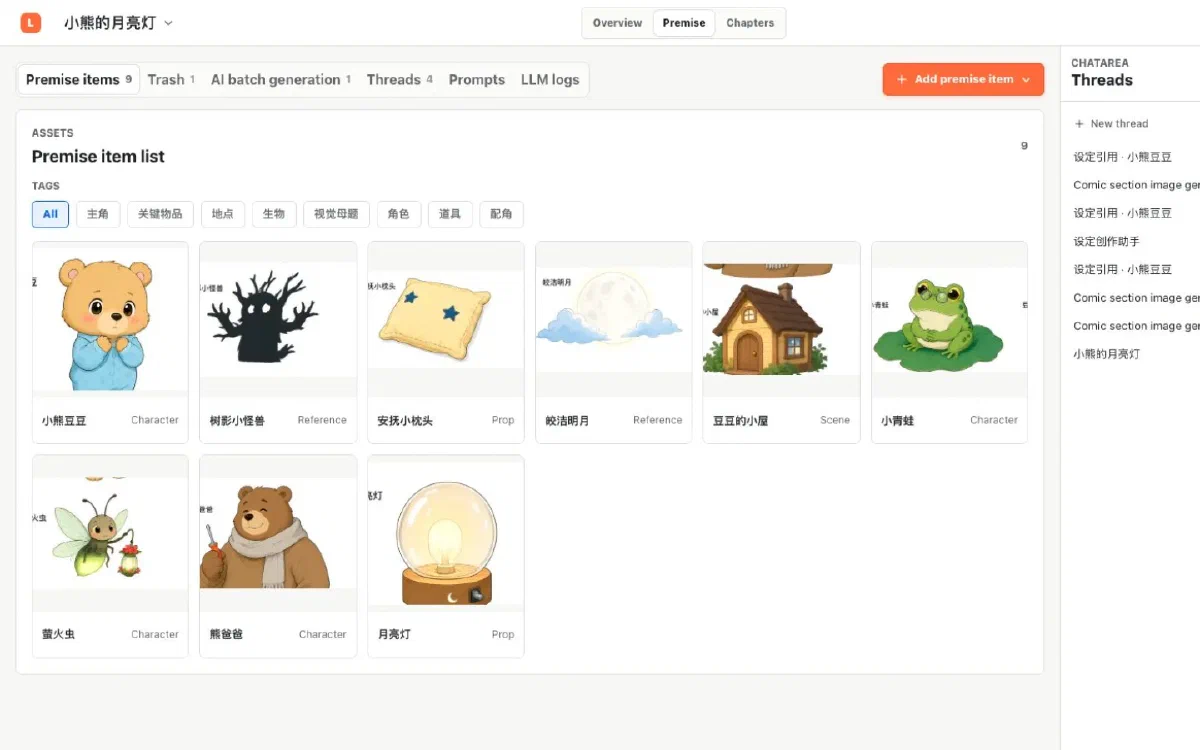
Keep the visual foundation of the book in the Premise workspace. Upload existing art or generate references, then reuse them in later scenes.

  • Organize characters, places, and props
  • Keep multiple image versions for one premise item
  • Select relevant references for each storyboard frame
Lumi character, place, and prop reference interface

Every frame remains editable

Storyboards, prompts, and image candidates are never one-shot results

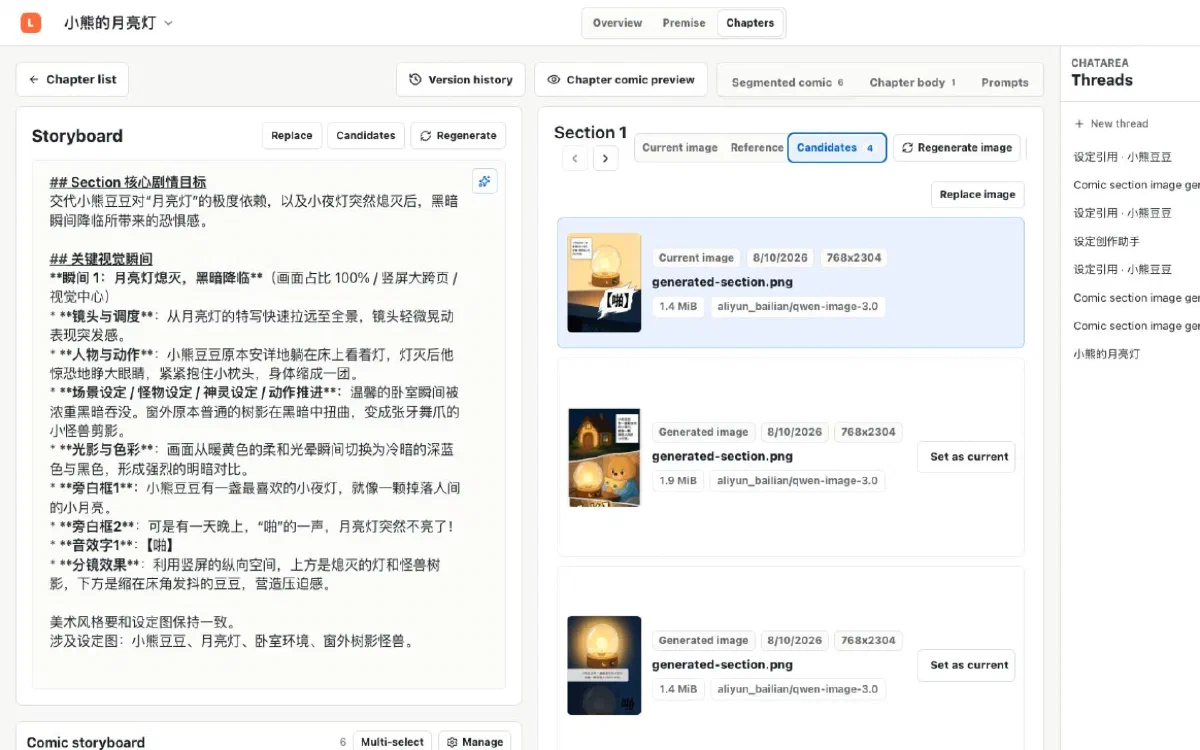
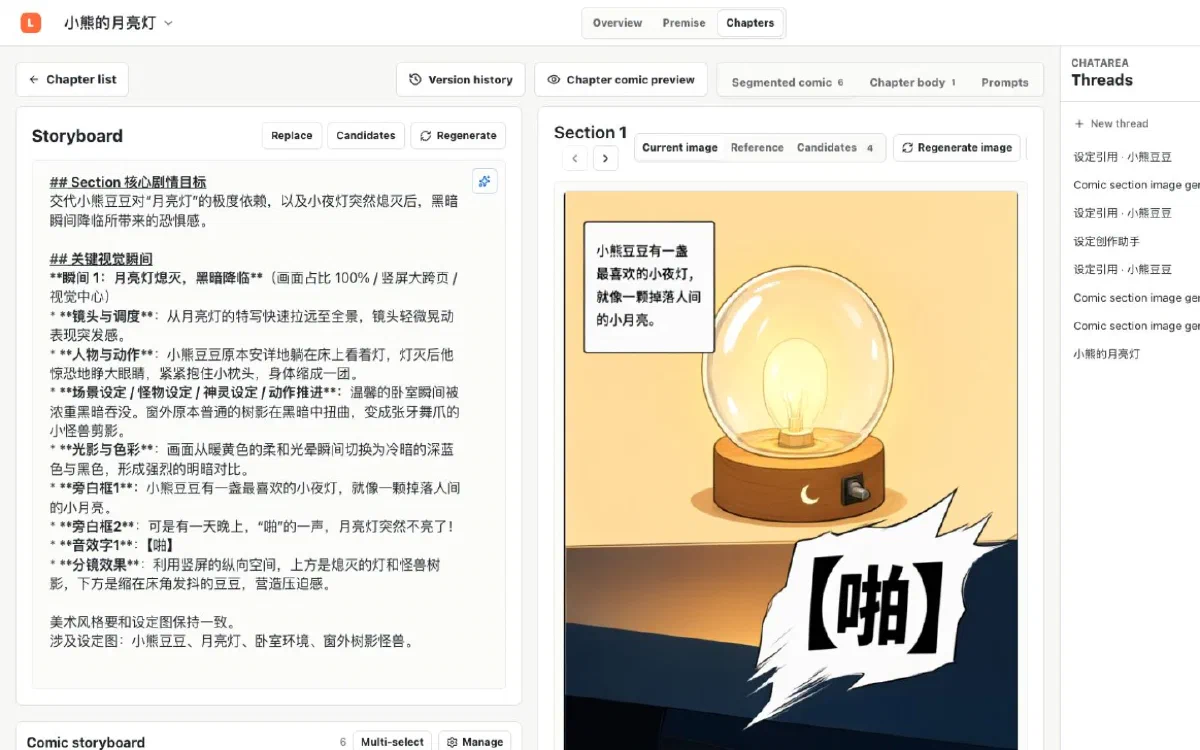
Each visual beat has its own storyboard and image candidates. Fix the storytelling first, generate the frame, and choose another version without rebuilding the chapter.

  • Tune framing, movement, dialogue, and order
  • Generate one frame or a selected batch
  • Make any saved candidate the current image
Lumi storyboard and image-candidate interface

Experiments do not erase the past

Save versions—and preserve room to change your mind

Lumi keeps history for prose, storyboards, images, and prompts. Background work and the current project state return after a refresh or reopen.

  • Preview and restore chapter-comic snapshots
  • Inspect and retry failed background tasks
  • Always see which version is current

Two ways to begin

See a first draft quickly or control every step

Both paths end in the same editable workspace. There is no locked, one-click final book.

Fast start

YOLO quick creation

Enter a minimal story idea and let Lumi prepare the story, profile, references, storyboard, and first image before you refine them.

Best for families and creators who want to see the shape of a story quickly
Detailed control

Manual creation

Start with an empty project or an existing draft and decide exactly when to write, import, generate, and accept a result.

Best for creators with a clear idea or a step-by-step process

Local first

Your project is a folder you control—not an island inside a website

Each picture book lives in a folder you choose. Move it, copy it, or back it up as a unit. Lumi remembers recent locations but does not upload the complete project to a Lumi cloud.

  • Story, images, and the project database stay together
  • Provider secrets are protected by operating-system secure storage
  • Only the content required for a generation is sent to your chosen provider

FAQ

A few things to know before you begin

Can I use Lumi if I cannot draw?

Yes. Start by describing the protagonist, goal, and change. Lumi can draft the story, premise, and storyboard, while you choose, edit, and regenerate the result.

Which operating systems are supported?

Current desktop builds support Apple Silicon Macs and Windows x64. The installation guide covers downloads, checksums, and the system prompts you may see on first launch.

Which AI providers can Lumi use?

Lumi currently connects to Alibaba Cloud Model Studio or Cloudflare AI Gateway. Provider usage may be billed by that provider; Lumi does not resell model usage.

Where is my picture-book project stored?

The project stays in a local folder you choose, including STORY.md, the project database, images, and required internal files. Back up or move the folder as one unit.

What if I do not like a generated result?

Edit the story or storyboard, generate another image, switch candidates, and preview or restore history where the workspace supports it. A new attempt does not need to erase the last one.

Lumi

Give tonight’s story a world of its own

Download Lumi and begin with one idea—or take ten minutes to follow the first-picture-book guide.

Lumi Docs

Search guides

Type a keyword to search the Lumi guides.