Lumi Docs
Lumi guides
Start with installation and provider setup, then complete the story, premise, storyboards, images, preview, and export.
The Lumi guides follow one complete path: make the app and model provider work, create a first picture book, then understand project storage and troubleshooting. If this is your first time, follow the pages in order.
Recommended path
- Install Lumi and pass the first-launch system prompts.
- Connect a provider and confirm that Lumi reports a verified connection.
- Use YOLO quick creation to make an editable first draft.
- Learn the story, premise, storyboard, image-candidate, and export workspaces.
- Finish with local projects and troubleshooting, then establish your own backup routine.
How Lumi works
Every picture book is a self-contained local project. AI can produce a first pass, but prose, premise items, storyboards, and image candidates stay editable. A new generation never requires you to abandon the previous version.
Install Lumi
Download and install the Apple Silicon macOS or Windows x64 desktop build and handle first-launch prompts safely.
Read guide → Get startedConfigure a model provider
Connect Alibaba Cloud Model Studio or Cloudflare AI Gateway, then store and verify the credentials safely.
Read guide → Make your first picture bookCreate your first picture book
Choose YOLO quick creation or a manual project and move from a story spark into an editable Lumi workspace.
Read guide → Make your first picture bookWrite the story and chapters
Maintain the story profile and chapter prose, import a draft, generate new versions, and resolve external STORY.md changes.
Read guide → Make your first picture bookBuild character and setting references
Create, upload, and manage characters, places, and props so later picture-book frames share a visual foundation.
Read guide → Make your first picture bookMake storyboards and picture-book frames
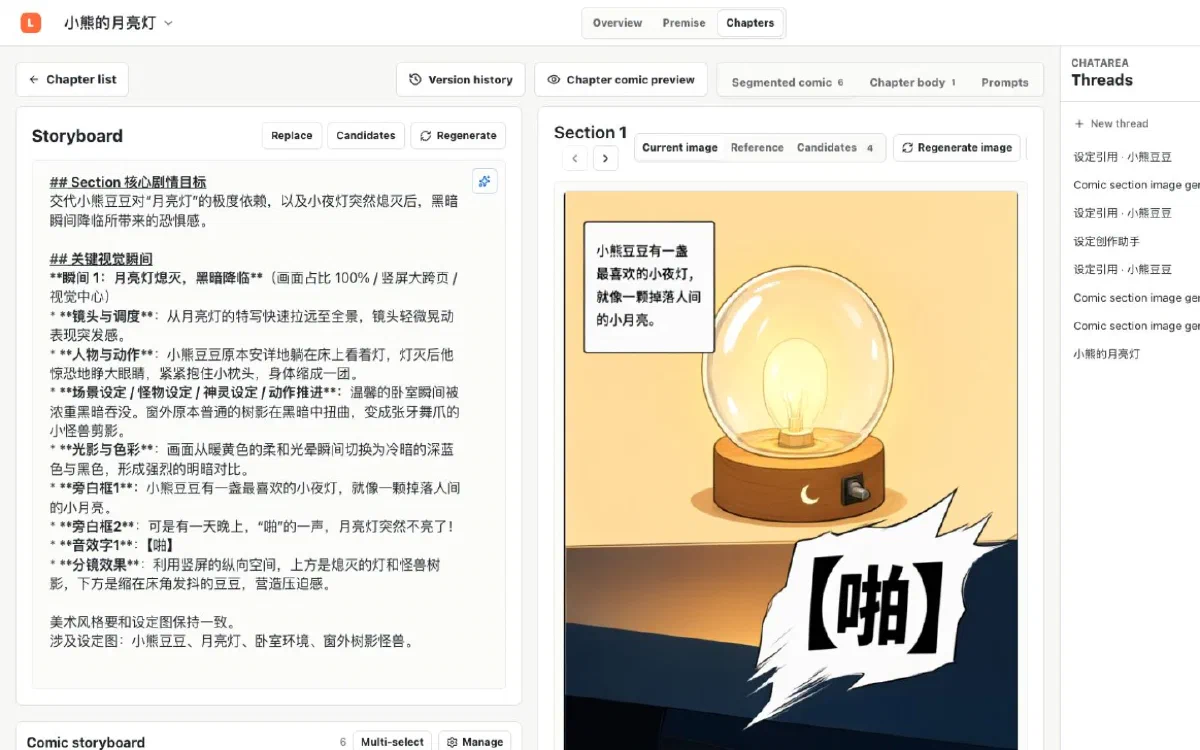
Break a chapter into editable visual beats, select premise references, generate image candidates, and manage current frames and snapshots.
Read guide → Make your first picture bookPreview and export the picture book
Review a chapter as a sequence, understand export readiness, and safely export one chapter or the whole project as an original-image ZIP or A4 PDF.
Read guide → Projects & troubleshootingManage local projects and backups
Understand the Lumi project folder, move or relocate it correctly, and build a safe complete-project backup routine.
Read guide → Projects & troubleshootingTroubleshooting
Resolve common launch, provider, project, background-task, image, and export problems.
Read guide →