Make your first picture book
Preview and export the picture book
Review a chapter as a sequence, understand export readiness, and safely export one chapter or the whole project as an original-image ZIP or A4 PDF.
Review the sequence as a reader before exporting. One attractive image does not guarantee a good chapter; movement, character appearance, color, and information density must work across adjacent frames.
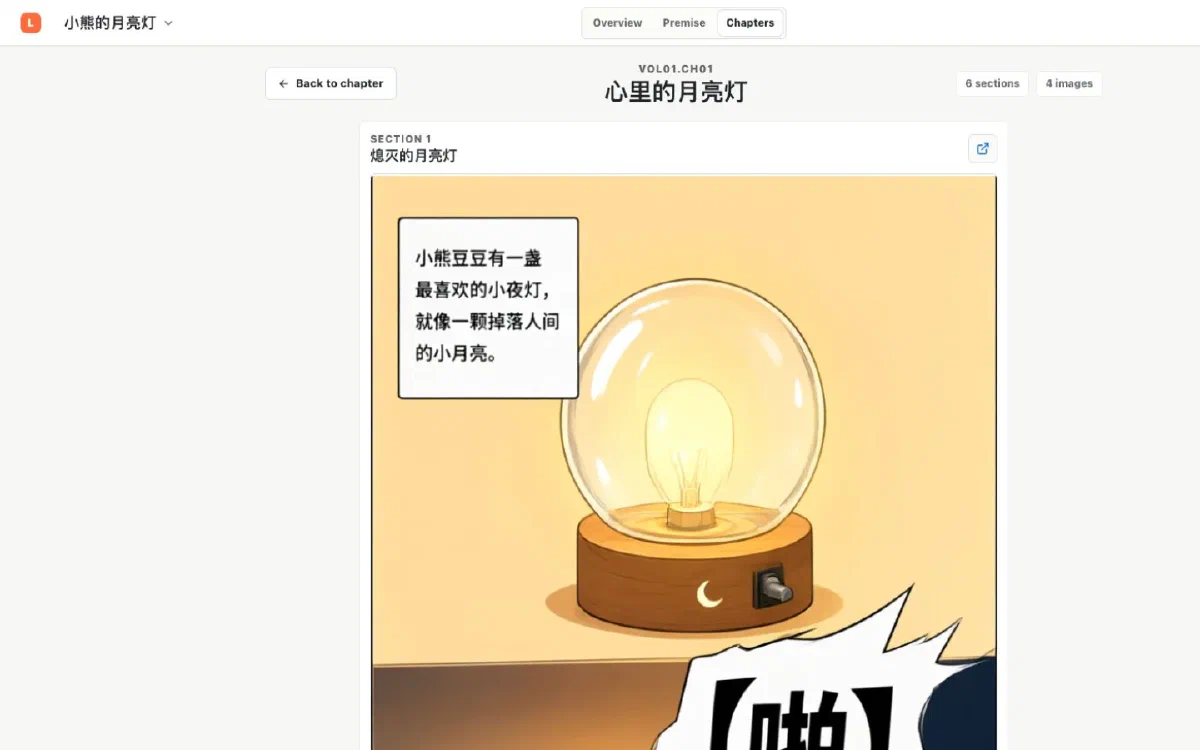
Preview the chapter continuously
- Open the chapter’s Comic workspace and enter continuous preview.
- Inspect the current image of every active section in order.
- Look for sudden costume changes, time-of-day jumps, contradictory movement, or repetitive framing.
- Return to the relevant section to change its storyboard, references, or current candidate, then preview again.
Preview uses the current image of each active section. A generated candidate does not replace the current frame until you make it current.
Understand export readiness
Lumi checks the current snapshot before creating an export:
- Every active section has a ready image: create a complete export directly.
- Some active sections have no image: the dialog shows how many are missing; create a partial export only after explicitly allowing missing images.
- No image is available: export is blocked until at least one current frame is ready.
Export one chapter
- Open the export dialog from the current chapter.
- Choose “Original-image ZIP” or “A4 PDF.” Lumi does not preselect a format.
- If images are missing, return to complete them or explicitly confirm an export containing only the available images.
- Create the task and wait for progress to complete. You may cancel it while active; retry the original task after failure or cancellation where the dialog offers that control.
- Download the completed file in its selected format. Lumi does not automatically start a download when the task finishes.
How Lumi lays out an A4 PDF
The PDF is always A4 portrait. Page 1 is a text cover: a project export shows the project name, while a chapter export also shows the chapter code and title. Remaining pages follow the picture-book ratio frozen when the project was created:
- Landscape and interactive picture books place two images vertically on each page.
- Vertical strips place two tall images side by side on each page.
- Square and other portrait picture books place one image on each page.
Every image is centered in full without cropping, rotation, or stretching. A project PDF never combines images from two chapters on one page; every chapter starts on a new page. GIF exports use the first frame.
Export the whole project
Create a project-scoped export from Overview → Exports. It includes active chapters and frames that satisfy the current snapshot. Check readiness for each chapter before allowing any missing images.
Export history is paginated and saved by the service. Download a completed historical item directly instead of regenerating the same snapshot.
Check the downloaded result
Extract a ZIP into a new folder and verify filenames, image count, reading order, and that every image opens correctly. For a PDF, verify the cover, page count, chapter breaks, and that every image remains complete. Do not extract a ZIP inside your only project folder, where delivery files could be confused with project assets.