Make your first picture book
Make storyboards and picture-book frames
Break a chapter into editable visual beats, select premise references, generate image candidates, and manage current frames and snapshots.
The Comic workspace breaks a chapter into visual sections. Each section has a current storyboard and current image while preserving candidate versions. You can remake one illustration without regenerating the whole chapter.
Generate a storyboard from a chapter
- Open the target chapter and choose comic-storyboard generation.
- Describe the desired frame count, pacing, dialogue density, and emotional focus.
- Set the maximum section count. The current range is 1–24 and the default is 6. More frames are not automatically better; picture books need room for page turns and repeated reading.
- Submit and wait. The task uses the chapter, prompt, and model settings frozen when it was created; a retry does not silently switch inputs.
If the project has no usable premise items, Lumi shows a warning. Storyboard and image generation remain available, but characters, props, and places may be less consistent.
Edit each visual section
Review every generated section:
- Does this frame advance the story instead of repeating the previous one?
- Which characters, places, and props truly need to appear?
- Are framing, direction of movement, and emotion clear?
- Does dialogue belong in the illustration, or should it become narration?
Adjust the title, order, storyboard text, action, and dialogue, then save another storyboard version.
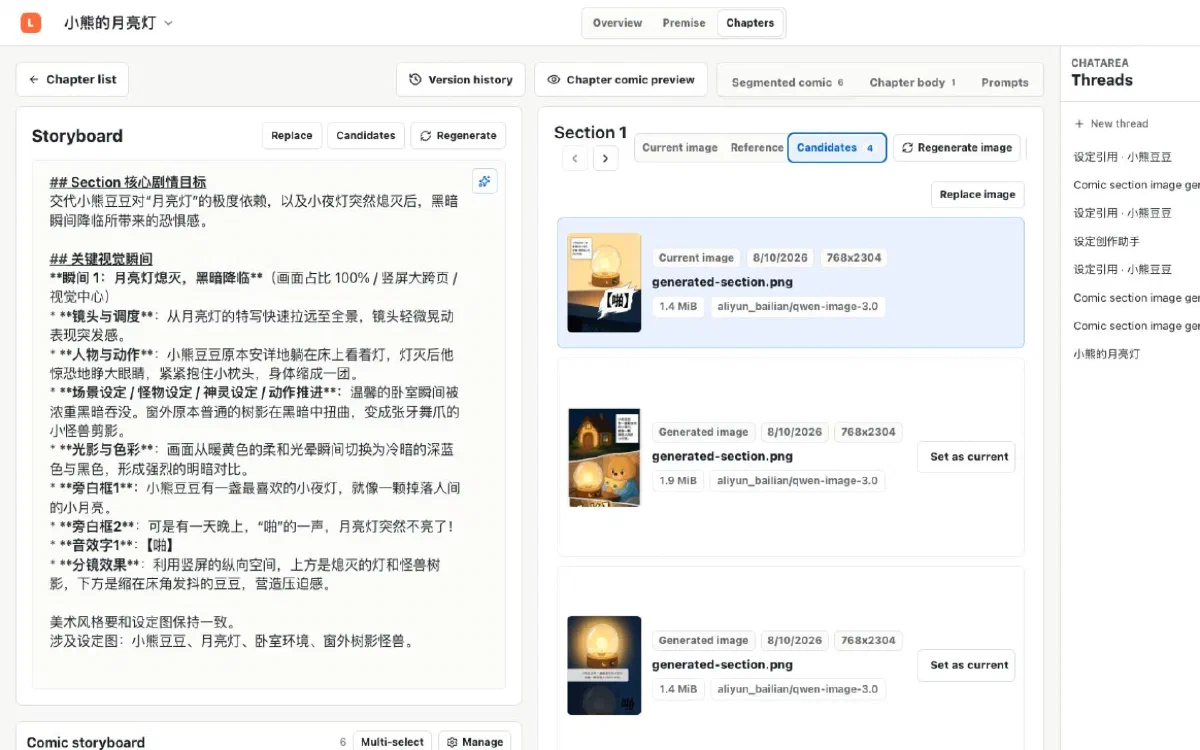
Generate image candidates
- Choose one section, or select several sections in the comic list for batch generation.
- Review the suggested premise references. Keep only the characters, places, and props relevant to the frame so that references do not compete.
- Check the image prompt and aspect ratio, then create the task.
- Open image details when generation completes to inspect source, model, premise references, and file state.
- Choose “Make current” for a good candidate. Earlier candidates remain available for comparison and restoration.
Restore a chapter-comic snapshot
Changes to section structure and current images create restorable snapshots. Open the chapter snapshot list, inspect the saved section count, storyboards, and media availability, then restore the chosen version.
Restoration uses historical content to establish a new current state instead of physically overwriting all history. Review every current image again before opening the continuous preview.